
reMarkable Paper Pro
4.2Editor score
Paper-like color writing
11.8-inch color display
Adjustable reading light
PDF annotation and transcription
Tablets for architects and designers must balance precise pen input, accurate color, useful screen space, and dependable portability. The strongest options also support PDF markup, drawing, 3D workflows, presentations, field notes, and multitasking without forcing users to carry a full desktop setup.
This guide compares ten tablets and pen-equipped drawing devices across display quality, stylus behavior, standalone capability, performance, connectivity, note organization, and suitability for professional applications. It includes both conventional tablets for design work and screen-based drawing tablets for dedicated illustration workflows.
Each selection highlights the use case it serves best, from high-resolution project review and handwritten documentation to portable sketching and desktop-style pen input. Ratings reflect the supplied customer feedback, while configurations, software compatibility, included accessories, and retail pricing can change over time.
4.2Editor score

4.7Editor score

4.4Editor score
As an Amazon Associate we earn from qualifying purchases.
The comparison below separates general-purpose tablets, paper-style notebooks, standalone drawing systems, and screenless pen tablets, making it easier to identify the right device for office work, client reviews, fieldwork, and digital drafting.





The Lenovo Idea Tab Pro Gen 2 combines a large, high-resolution touchscreen with a stylus and folio case, giving it the broadest mix of study, design, and review features in this guide. Its supplied customer rating is 4.3, and the 13-inch 3.5K IPS panel offers enough resolution to inspect drawings, reference images, and written project information in considerable detail.
We may earn a commission when you buy through this link, at no additional cost to you.
The most notable feature is the combination of a 3.5K display, 144Hz refresh rate, and 800-nit brightness. That specification set makes the tablet useful for both indoor document work and brighter environments where screen visibility can deteriorate. Smart Capture can pull visuals into Lenovo Notepad, while Sketch to Image and image sharpening tools can help transform rough source material into more legible visual references.
Its AI-assisted organization is particularly relevant for architects who accumulate site notes, lecture material, meeting records, and reference imagery. Lenovo AI Live Transcript can create continuous notes, while AI Notes can summarize sections, rewrite passages for clarity, and continue unfinished writing. These tools do not replace professional judgment, and their usefulness depends on the available apps and compatible workflows, but they can reduce the manual effort of processing large volumes of notes.
The included pen and folio case make this configuration easier to use immediately and protect the tablet during travel. The Snapdragon 8s Gen 4 platform, 8GB of memory, and 128GB of storage support study applications, multitasking, and creative tools, although the storage figure deserves attention for high-resolution renders, extensive image libraries, or large 3D projects. This is a strong all-around pick for users who want one large tablet for visual review, notes, and light creative production.
The 3.5K panel gives architects a substantial advantage when reviewing fine linework, material references, and dense PDF sheets. Its high brightness and IPS format also suit moving between studio tables, meeting rooms, and locations with uneven lighting.
Smart Capture, automatic transcription, and AI-assisted summaries can turn meeting dialogue and visual references into a more navigable note library. These functions are especially useful when one designer must synthesize information from several disciplines.
We may earn a commission when you buy through this link, at no additional cost to you.
The reMarkable Paper Pro is designed for architects who think through drawings, diagrams, and written concepts on a surface that feels deliberately paper-like. It carries a supplied rating of 4.2 and includes the Marker Plus, six spare tips, a black leather Book Folio, and a USB-C cable, making it a ready-to-use portable notebook for site visits and design studios.
We may earn a commission when you buy through this link, at no additional cost to you.
The 11.8-inch Canvas Color display introduces color into a product built around the reMarkable writing experience. That matters for architects who add material palettes, landscape references, presentation graphics, and client feedback to technical work. The Marker Plus is described as precise and responsive, while its built-in eraser reduces the need to switch tools when revising a sketch or annotation.
Document management is central to the proposition. Users can organize notes and files into folders and tags, write directly on PDFs, and convert handwriting into typed text. The low-glare screen reflects natural light rather than relying on a glossy surface, and an adjustable reading light supports work in dim environments. These qualities make it particularly compelling for extended reading, markups, and handwritten reasoning.
This is not the strongest choice in the guide for compute-heavy 3D modeling, rendering, or a conventional desktop replacement. It is, however, exceptionally focused for a design notebook. Architects who dislike the visual busyness of a general tablet, prefer pen-first interaction, and need a distraction-light way to review documents and develop ideas should give the Paper Pro serious consideration.
Direct PDF annotation is valuable for adding notes without obscuring the underlying drawing. Folders and tags help keep client files, meeting records, site observations, and discipline-specific references separate and searchable.
The low-glare surface and adjustable reading light support long sessions in studios, meeting rooms, and dim project environments. This focus on sustained reading sets it apart from more entertainment-oriented tablets.
We may earn a commission when you buy through this link, at no additional cost to you.
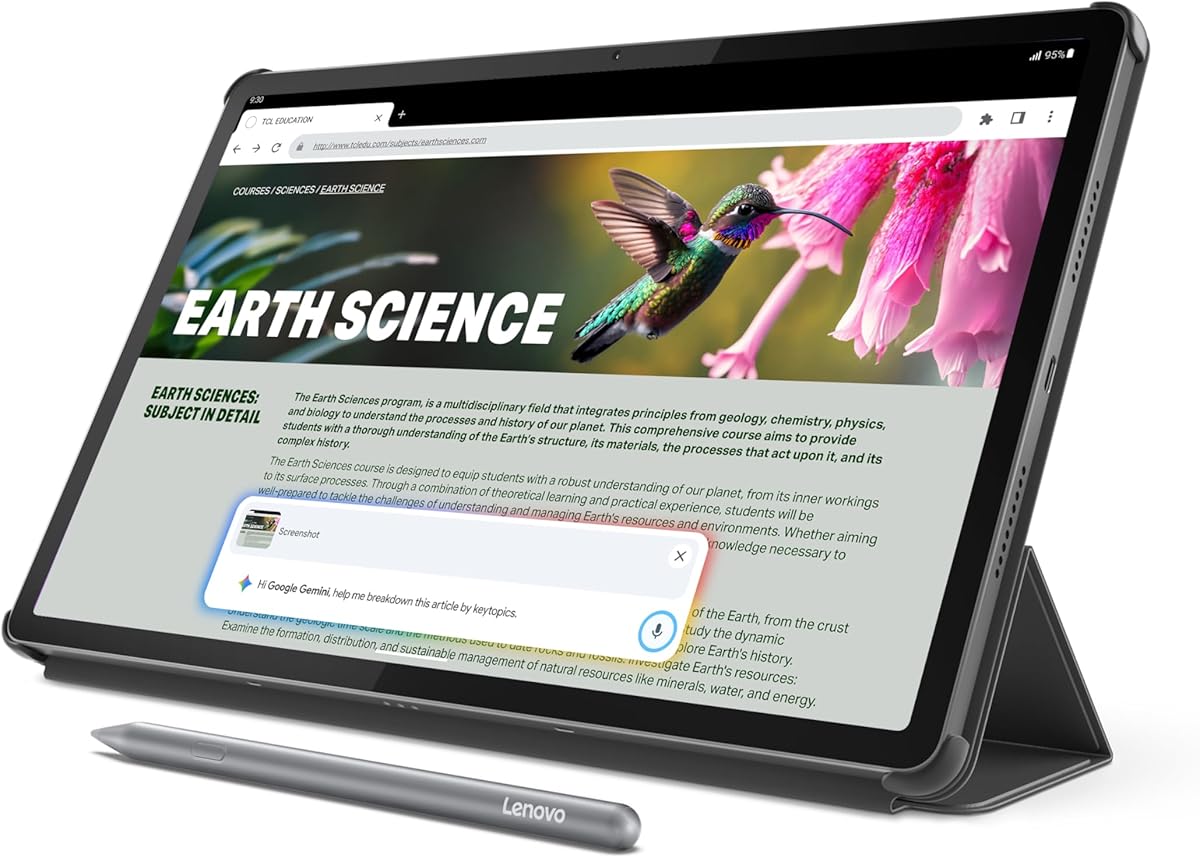
The Lenovo Idea Tab Pro is a value-oriented Android tablet that nevertheless includes several features architects and design students value: a sharp 12.7-inch 3K display, a pen, and a folio case. Its supplied rating of 4.3 makes it the highest-rated model in this guide, providing a strong combination of customer feedback and practical accessory coverage.
We may earn a commission when you buy through this link, at no additional cost to you.
The MediaTek Dimensity 8300 processor supports multitasking, study applications, downloads, and media review, while Wi-Fi 6E provides modern wireless connectivity. The 12.7-inch 3K LCD panel offers enough space and detail for comparing elevations, reviewing plans, and working with illustrated specifications. Quad JBL Dolby Atmos speakers also make it useful for presentations, tutorial content, and collaborative review sessions.
Its Google-oriented tools add practical value for research and visual discovery. Circle to Search lets a user encircle an item with a finger or the included Tab Pen Plus and request related information without manually creating a screenshot. The display also switches between monochrome and chromatic visual modes, while Low Blue Light certification supports more comfortable reading. Gemini features may assist with research and problem-solving, though their availability and compatibility should be checked against current service terms.
For architecture students, multidisciplinary teams, and designers who need a sharp pen-enabled tablet without moving to a premium workstation, this Lenovo model is especially persuasive. The main limitation is its 128GB storage capacity, which can fill quickly with large project files. Users with extensive media libraries should plan for external storage or careful file management.
The 12.7-inch 3K panel provides a useful compromise between roomy screen space and portable size. It is well suited to reviewing plans, presenting concepts, and comparing visual references away from a desk.
Circle to Search can shorten the path from an unknown visual detail to relevant online information. It is particularly handy when a designer encounters a product, material, symbol, or image during concept development.
We may earn a commission when you buy through this link, at no additional cost to you.
The UGEE M708 V2 is a screenless graphics tablet that brings pen-based drawing to a broad range of computers and compatible mobile devices. Its supplied rating is 4.4, and the combination of a large active surface, pressure sensitivity, tilt support, and programmable controls makes it an appealing lower-cost option for architects who already work primarily on a desktop.
We may earn a commission when you buy through this link, at no additional cost to you.
The active area measures 10 by 6.25 inches, which offers more room for sketching and annotation than many compact pen tablets. The included battery-free stylus provides 8192 levels of pressure sensitivity, allowing artists and designers to vary line weight through pressure. Its tilt support, advertised at up to 60 degrees, can also help with shading and different brush behaviors.
Eight express keys place common commands such as zoom, undo, scrolling, and erasing within reach. These shortcuts can materially improve repetitive workflows, particularly when drawing details, adjusting views, or correcting work. Broad compatibility with Windows, macOS, Chrome OS, Linux, and Android makes the device less dependent on a single platform, though appropriate drivers and creative applications are required.
Architects should understand the important limitation: this is not a standalone tablet and has no built-in display. The user draws on the pad while looking at a separate monitor. That arrangement is familiar to many illustrators and can be excellent for long desk sessions, but it offers none of the mobility or direct-on-screen precision of a tablet with a display. It is best for budget-conscious users who already have a suitable workstation.
Pressure and tilt support provide more expressive control than a basic mouse or trackpad. The generous active area can reduce the need for constant zooming when sketching broad concepts or refining technical details.
Eight customizable express keys can be mapped to frequently used commands. Architects can adapt them to zoom, navigation, line selection, and undo functions to create a more efficient personal workflow.
We may earn a commission when you buy through this link, at no additional cost to you.
The Apple iPad Pro 11-inch with the M5 chip is the most versatile premium device in this guide for architects and designers who want a portable workstation rather than a single-purpose sketch surface. Its supplied rating of 4.7 ties for the highest customer rating listed, and its Ultra Retina XDR display, LiDAR scanner, Wi-Fi 7, and flexible iPadOS interface support a broad range of professional workflows.
We may earn a commission when you buy through this link, at no additional cost to you.
The Ultra Retina XDR display offers extreme brightness, precise contrast, ProMotion, P3 wide color, and True Tone. Those capabilities are valuable for visual evaluation, where designers need to inspect renderings, compare material imagery, and review detailed technical information. The M5 chip adds strong performance and on-device AI capabilities, while the stated storage options can accommodate larger project libraries.
Apple Pencil Pro and USB-C Apple Pencil support precise drawing, note-taking, and creative work. A Magic Keyboard can add comfortable typing and a trackpad with haptic feedback. The redesigned iPadOS windowing system lets users organize multiple applications, making it possible to keep references, notes, drawings, and communication visible during intensive project work. The two 12MP cameras and LiDAR scanner may also support capture and spatial workflows.
This is the most complete recommendation for professionals who value ecosystem integration, strong performance, and portability. The important caveat is that Apple Pencil and Magic Keyboard are separate accessories, and the overall purchase is positioned at the premium end of the category. However, for users already invested in Apple workflows, the combination of display quality, performance, and accessory flexibility is difficult to overlook.
P3 wide color, True Tone, and high contrast make the display suitable for examining renderings, photographs, and presentation boards. Precise visual evaluation remains important when color and tonal differences influence design decisions.
Flexible window management makes it easier to keep a drawing, reference images, specifications, and messages visible. Wi-Fi 7 and the M5 chip also support quick transfers and demanding applications away from the studio.
We may earn a commission when you buy through this link, at no additional cost to you.
The RubensTab T11 Pro is a standalone drawing tablet intended for creating without a connected computer. Its supplied rating is 4.4, and its 10.1-inch Full HD IPS screen, built-in 5800mAh battery, and battery-free pressure stylus make it a practical option for architects who want to sketch concepts while visiting sites or working away from a desk.
We may earn a commission when you buy through this link, at no additional cost to you.
The 1920 by 1200 display offers sharp detail, vibrant color, and wide viewing angles for an immersive drawing surface. Multi-touch supports zooming, panning, and scrolling, while the included stylus responds to pressure for variations in line weight. Because the pen contains no battery, users avoid the inconvenience of charging another accessory before beginning work.
Preinstalled drawing applications make the device approachable for beginners and convenient for immediate use. The adjustable stand case serves as both protection and support, allowing the tablet to be positioned for desk work or carried during travel. Its 5800mAh battery is rated for up to five hours of continuous use, and USB-C charging provides a familiar way to replenish power or connect a mobile power bank.
The T11 Pro is more specialized than a general productivity tablet. Architects focused on freehand concept development, quick sketches, and meeting notes can work directly on its screen, while those needing advanced CAD, BIM, rendering, or full desktop applications should choose another device. Within the standalone sketch category, its combination of screen, pen, battery, and stand is cohesive and travel-friendly.
Standalone operation removes the need to carry a laptop or depend on a compatible display. That independence makes the T11 Pro useful for quick concepts, client discussions, and fieldwork.
USB-C charging, a five-hour stated battery life, and a protective adjustable stand create a compact creative setup. Architects can begin sketching with only the tablet and pen in hand.
We may earn a commission when you buy through this link, at no additional cost to you.
The PicassoTab X14 is built for users who want a large drawing area without tethering the device to a computer. Its supplied rating is 4.2, and the 14-inch laminated screen offers enough room for broad compositions, detailed sketches, animation work, and design exercises that may feel cramped on smaller tablets.
We may earn a commission when you buy through this link, at no additional cost to you.
The fully laminated construction is intended to reduce parallax and glare, creating a more paper-like drawing sensation. Its active pen recognizes 4096 pressure levels and supports natural changes in stroke width. Five preloaded applications cover drawing, painting, animation, tutorials, and guides, which lowers the barrier for users who want a ready-made creative environment.
An octa-core processor, 6GB of memory, and 128GB of storage provide the hardware foundation for drawing apps, schoolwork, streaming, and multitasking. Storage can be expanded up to 1TB according to the supplied information. A case, drawing glove, universal power adapter, preinstalled screen protector, and app upgrades round out the package.
The main tradeoff is portability. A 14-inch standalone tablet is better suited to a studio desk, classroom, or fixed creative station than to frequent travel. It is a compelling choice for concept artists, students, and architects who favor a roomy canvas and a paper-like surface, but users who need high-resolution BIM review or mobile productivity may find a general-purpose tablet more versatile.
The generous display can reduce the amount of zooming and panning required for wide sketches or layouts. It is especially useful for visual ideation rather than precision work confined to a small central area.
Preloaded drawing, painting, animation, and tutorial applications support both guided learning and immediate creation. The included glove and accessories improve comfort and readiness for longer sessions.
We may earn a commission when you buy through this link, at no additional cost to you.
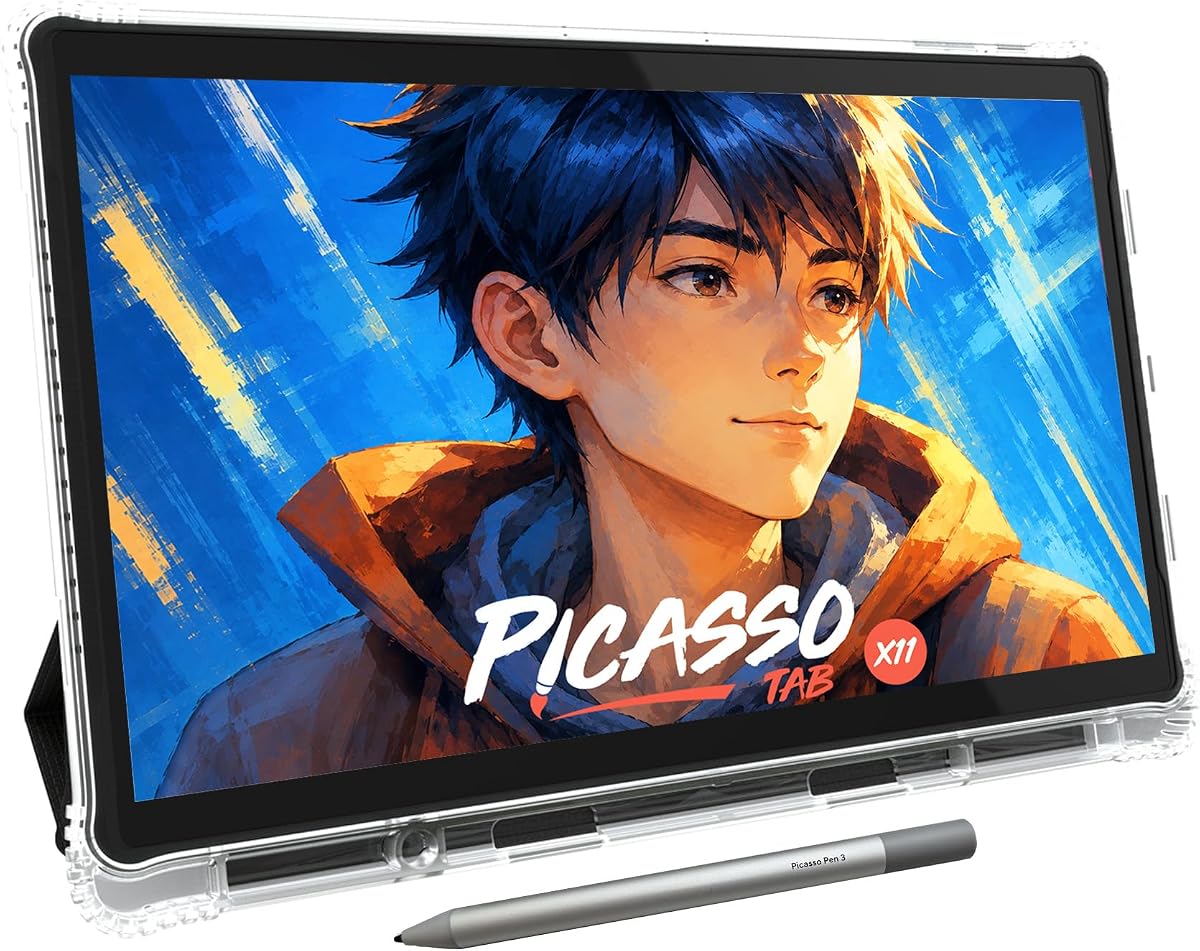
The PicassoTab X11 offers a middle ground between compact handhelds and very large drawing tablets. Its supplied rating is 4.2, and the 11-inch 2K laminated display provides enough resolution and working area for sketching, shading, illustration, classroom work, and portable design demonstrations.
We may earn a commission when you buy through this link, at no additional cost to you.
As a standalone device, it can draw, design, animate, and learn without an external computer. Five preloaded applications cover the core creative workflow, while the 4096-level pressure stylus provides adjustable strokes. The laminated surface is designed to reduce parallax and glare, helping the pen interaction feel more direct and paper-like.
Its octa-core processor, 6GB of memory, and 128GB of storage support drawing applications, school tasks, streaming, and multitasking. Storage can be expanded up to 1TB. For new users, Artixo tutorials, guided exercises, and the Xplore help application make the tablet less intimidating and provide structured ways to improve drawing skills.
The X11 sits between the T11 Pro and X14 in screen size and occupies a practical portable niche. Architects who primarily sketch, annotate, and present ideas will find it approachable, while users who depend on professional CAD or BIM software should verify application support before committing. As a general standalone drawing tablet, it offers useful capability without requiring a separate computer.
The laminated 2K screen and pressure-sensitive pen create a focused drawing surface. Architects can develop spatial ideas, annotate images, and demonstrate revisions without first setting up a desktop.
Guided lessons and drawing aids help beginners build confidence with pressure, line control, and common creative applications. The preinstalled tools make the tablet useful immediately after setup.
We may earn a commission when you buy through this link, at no additional cost to you.
The Samsung Galaxy Tab S10 FE+ is a large Android tablet that combines an S Pen, handwritten-note utilities, and water-resistant construction. Its supplied rating of 4.7 ties for the highest in the guide, making it a compelling choice for architects who want a practical, mobile tablet for markup, documentation, and everyday project work.
We may earn a commission when you buy through this link, at no additional cost to you.
The S Pen provides responsive, paper-like handwriting for notes, sketches, and annotations. Handwriting Assist can straighten words, align them, and adjust spacing, which can make rough field observations easier to read later. Math Solver can convert handwritten equations into text, while Circle to Search provides a quick way to investigate visual information on screen.
The 13.1-inch display gives architects a generous canvas for plan review, presentation preparation, and handwritten records. A powerful processor supports gaming, casual multitasking, and routine creative applications, while Super Fast Charging helps reduce downtime between sessions. Dual speakers add value for media, online meetings, and reviewing presentations with collaborators.
Its durability is especially relevant to project sites and studios where spills or damp environments are possible. Storage begins at 128GB, with the supplied information also noting support for additional space through microSD expansion. This is a strong Android option for users who value pen feel, practical note cleanup, and resilience, although serious BIM or CAD workflows still depend on the availability and performance of the chosen applications.
Handwriting Assist can straighten and space handwritten text, improving readability without requiring the user to redraw every note. The result is a more structured record that is easier to review after a meeting or visit.
Water resistance provides useful protection against accidental splashes. Combined with the large display, S Pen, and fast charging, it creates a dependable mobile kit for fieldwork and studio work.
We may earn a commission when you buy through this link, at no additional cost to you.
The Wacom Intuos Pro is a compact screenless drawing tablet built for established creative workflows on Mac and Windows computers. Its supplied rating of 4.6, included Pro Pen 2, six ExpressKeys, and Touch Ring make it a particularly considered option for architects and visual designers who already depend on desktop drafting or illustration software.
We may earn a commission when you buy through this link, at no additional cost to you.
Pro Pen 2 provides 8192 pressure levels, tilt recognition, virtually lag-free tracking, and two customizable side switches. These features let users vary line weight, shade strokes, and reach common commands without leaving the pen. The Touch Ring adds another navigation layer, while the six ExpressKeys can be assigned to tools such as zoom, selection, undo, and brush functions.
Its compact 10.6 by 6.7-inch design is smaller than many general-purpose tablets, but that can be an advantage in a studio because it occupies little desk space. Bluetooth allows a clean wireless setup, while USB provides a straightforward wired connection. The package includes a battery-free pen, stand, ten replacement nibs, a USB cable, and a quick-start guide.
Architects should consider that this is an input device rather than a portable tablet or standalone notebook. It requires a suitable computer and does not offer a screen on which to draw. For professionals who already have a powerful workstation, value pen feel, and want a dedicated, customizable control surface, the Intuos Pro remains a focused and mature choice.
Pressure sensitivity, tilt recognition, and smooth tracking support natural line variation and shading. The pen can feel intuitive to illustrators and technical drafters who are accustomed to computer-based input.
ExpressKeys, Touch Ring controls, and pen switches can substantially reduce reliance on menus and keyboard shortcuts. Mapping those controls to frequent actions creates a more streamlined drawing environment.
We may earn a commission when you buy through this link, at no additional cost to you.
The right tablet depends on whether the primary need is document review, freehand design, field notes, professional modeling, or pen-based input on a computer. Display quality, stylus precision, software support, battery life, and portability should be evaluated together rather than in isolation.
Screen size determines how much of a plan, elevation, detail set, or handwritten page can be viewed without frequent zooming. A 10- to 11-inch device is generally easier to carry, while a 13- or 14-inch model provides a larger canvas for markups and presentations. Resolution also matters because dense technical drawings, small annotations, and material imagery demand enough pixel density to remain legible.
Choose a high-resolution display if you regularly review detailed plans, inspect visual references, or work with layered images. Favor a larger screen for collaborative reviews, but consider the added bulk for travel and site visits.
Pressure levels determine how finely a stylus can vary line weight, opacity, and brush behavior. Higher counts do not automatically guarantee a better drawing experience, but they provide finer control when supported by the drawing application. Tilt recognition adds another dimension by recognizing the angle of the pen, which can influence shading and broad brush strokes in compatible software.
Look for a stylus with sufficient pressure sensitivity and reliable tilt support if your work relies on dynamic line weight. For technical markup, the quality and stability of the pen experience may matter more than a very high maximum pressure count.
Standalone tablets contain their own processor, operating system, apps, and battery, allowing you to create away from a desk. Screenless graphics tablets act as input devices and require a separate computer or compatible mobile device. This distinction affects portability, workflow flexibility, display quality, and the software you can realistically use.
Choose a standalone model for mobility and field sketching. Choose a computer-dependent pen tablet when you already have a powerful workstation and want a dedicated, comfortable drawing surface for CAD, illustration, or image editing.
Architects must verify whether their required CAD, BIM, rendering, diagramming, and documentation applications run natively, through a desktop connection, or only in a limited mobile form. Pen features also depend on software support, so a capable stylus does not guarantee pressure, tilt, or shortcut behavior in every application. Cloud and web applications can fill some gaps but may require a reliable internet connection.
Check the operating system and application requirements before buying. If a specific program is essential, confirm that the tablet can run it or can serve as a reliable pen display or input surface for that program.
Many architecture projects center on PDFs rather than blank canvases. Useful features include direct annotation, folders, tags, handwriting recognition, transcription, automatic straightening, searchable text, and quick capture of sketches or images. These tools can improve the transition between a meeting, a site visit, and a structured project record.
Prioritize devices with clear PDF markup and handwriting organization when documentation is central to your role. If notes will later feed reports, specifications, or client summaries, transcription and correction tools may create more value than a faster display refresh rate.
A tablet that performs well at a desk may still be awkward to carry between presentations, site visits, and client meetings. Consider the entire kit, including the pen, folio, charger, stand, and any keyboard. Standalone devices should offer enough battery for the work period, while screenless tablets can usually be used for as long as the host computer remains available.
Choose a compact model for frequent travel and a larger screen for stationary creative work. Confirm charging speed, expected battery duration, and whether essential accessories are included before planning a mobile practice.
Accurate color matters for materials, presentation graphics, and rendered imagery, while brightness helps when viewing plans outdoors. Paper-style devices intentionally use low-glare surfaces that feel closer to paper but may not provide the same vivid output as a high-brightness LCD or OLED. Anti-glare or laminated surfaces can make direct pen work more comfortable in bright studios.
Choose a vivid, bright screen for visual review and entertainment alongside design tools. Choose a low-glare paper-like surface when writing comfort, reduced reflections, and long-form reading matter most.
Modern design work often involves large image libraries, project files, cloud services, and collaboration tools. Wi-Fi 6E or Wi-Fi 7 can improve wireless transfer and access to cloud resources, while USB-C and Bluetooth support accessories or alternative connection methods. Storage capacity and expansion options also influence whether users can keep project assets locally.
Check the storage configuration against your project library and consider an external drive or card expansion where supported. Prioritize current wireless standards and dependable accessory connectivity if you plan to move files regularly between a tablet, computer, and presentation display.
Begin by configuring the tablet for your actual workflow rather than installing every available application. Import a small test drawing or PDF, calibrate the pen if the software offers that option, adjust palm rejection, and customize shortcuts. Test pressure, tilt, zoom, hand gestures, and text entry using a noncritical project file. This prevents accidental navigation from interrupting a drawing and confirms that the device behaves as expected.
Keep the tablet and pen in a protective case while traveling, and avoid placing the screen face down with debris on the surface. Clean the display with a soft, lint-free cloth and follow the manufacturer’s guidance for compatible cleaning products. Replace worn nibs before they damage the screen, avoid leaving the pen magnetically loose near the tablet, and use a supported charger when charging. For a screenless tablet, keeping the active area free of dust helps maintain accurate tracking and pen glide.
Separate project files into clear folders and establish a naming system before work becomes difficult to search. Back up important drawings, notes, and PDFs regularly, and verify that cloud synchronization is complete rather than assuming it has occurred. Update the operating system and creative applications when stable versions are available, but save work before major software changes. For client-facing material, check the display output, export quality, annotations, and hidden metadata before presenting or exporting final files.
A tablet can be better for portable markups, handwritten notes, client presentations, and rapid visual review. A laptop remains preferable when a project depends on advanced desktop CAD, BIM, rendering, or file-management software. Many architects use both, with a tablet acting as a portable companion rather than a complete replacement.
The reMarkable Paper Pro is particularly focused on PDF annotation, folders, tags, and paper-like handwriting. The iPad Pro is the stronger all-round option for users who also need high-end display performance and a broad professional application ecosystem. Samsung and Lenovo alternatives provide useful Android-based pen workflows with larger screens.
A standalone tablet is useful when ideas must be captured away from a workstation, during site visits, or in early concept work. If most technical drafting happens in desktop software, a Wacom or UGEE pen tablet may provide a better pen experience without the expense of another complete computer. Choose based on mobility and the applications you actually use.
An 11-inch screen is a practical compromise between detail and portability, while 13- and 14-inch models are easier for plan review and presentation. Smaller screens are easier to carry and often better for handwritten notes. Resolution, brightness, glare, and pen feel can matter as much as the diagonal measurement.
Yes, particularly for freehand sketches, expressive line variation, shading, and diagrams. Pressure and tilt behavior also depend on application support, so test your required software before buying. For conventional vector CAD drafting, comfort, accuracy, and shortcut access may be more important than very high pressure counts.
They can be excellent for architects who already work on a powerful computer and want precise pen input for sketches, markup, and illustration. The Wacom Intuos Pro and UGEE M708 V2 provide dedicated active areas, pressure sensitivity, and customizable controls. Their main limitation is that they cannot provide a portable standalone drawing surface.
Requirements depend on whether the tablet stores working drawings, high-resolution images, video, PDFs, and project archives. The listed models range from 128GB upward, which may be sufficient for active work but can become limiting with extensive media libraries. Consider external storage, card expansion where supported, and cloud synchronization before selecting a configuration.
Some tasks can be reviewed or lightly edited on a tablet, but full professional BIM and CAD workflows often still depend on desktop-class software and a larger display. A high-performance tablet can serve as a strong companion for markups, consultation, and visualization. Check application support and project requirements before treating it as a full replacement.
The Apple iPad Pro 11-inch M5 is the strongest all-round professional choice, combining a high-quality XDR display, strong performance, flexible windowing, and mature pen accessory support. The reMarkable Paper Pro is the premium specialist for paper-style writing, PDF organization, and low-glare document work, while the UGEE M708 V2 offers the most accessible route to desktop pen input among the featured selections.
For users wanting a large general-purpose Android tablet, the Lenovo Idea Tab Pro Gen 2 stands out with its 13-inch 3.5K panel, 144Hz refresh rate, brightness, AI-assisted notes, and included accessories. The regular Lenovo Idea Tab Pro provides similar value-oriented utility, while the Samsung Galaxy Tab S10 FE+ adds a durable body, S Pen features, and helpful handwriting tools. Standalone PicassoTab and RubensTab products are more appropriate when portable drawing is the central priority.
Before purchasing, verify the required software, confirm that the included stylus supports the features you need, and balance screen size against the weight you will actually carry. Retail pricing, bundle contents, storage configurations, and application compatibility can change, so review the current listing carefully before making a final choice.